Docker: A Practical Approach
Learn to build, deploy, and manage containerized applications with real-world examples and integration best practices.
Docker series: 1. Docker: A Practical Approach · 2. Deployment in Practice · 3. Networking Part 1: How a Request Reaches Your Container · 4. Networking Part 2: Subnets, IP Collisions and the Default Bridge
📑 Table of Contents
- What Is Docker?
- Docker Ecosystem Overview
- Understanding the Basic Components
- Docker Engine vs Docker Desktop
- Install Docker
- Structure of a Docker Project
- Dockerfile: Heart of Docker
- How Docker Works (Simplified)
- Common Questions on Dockerfile
- Why Docker Compose?
- Key Questions on Docker Compose
- Full Flow: Compose Build and Run
- Multistage Dockerfiles
- Common Docker Commands
What Is Docker?
Docker is a platform that allows you to build, ship, and run applications in containers. Containers are lightweight, portable units that bundle your code along with all its dependencies so it runs reliably anywhere — on your machine, a server, or in the cloud.
Docker Ecosystem Overview
Here’s how everything fits together:
1
2
3
4
5
6
7
8
9
10
11
12
13
14
15
16
17
18
19
20
21
22
23
24
25
26
27
28
29
Building and Running a Single Container
+------------------+
|    Dockerfile    | (Contains instructions)
+------------------+
          |
          | docker build
          v
+------------------+
|   Docker Image   | (Read-only template)
+------------------+
          |
          | docker run
          v
+------------------+
| Docker Engine    | (Core runtime that runs containers)
+------------------+
          |
          | runs
          v
+------------------+
| Docker Container | (Running instance of the image)
+------------------+
          |
          | Accesses Storage Volumes
          v
+------------------+
|  Data Volumes    | (Persisted data)
+------------------+
- Dockerfile: Instructions to build an image.
- Docker Image: Built from a Dockerfile; a read-only template.
- Docker Container: A running instance of an image.
- Docker Compose: A tool for defining and running multi-container Docker applications.
- Docker Hub: A cloud registry for Docker images (like GitHub, but for containers).
Understanding the basic components
| Component | What It Does | Do You Need It? |
|---|---|---|
| Docker Engine | Core service that runs containers. CLI-based. | ✅ Yes |
| Docker Desktop | GUI + VM wrapper around Docker Engine. Required on Windows/macOS. | ✅ Yes (if on Windows/macOS) |
| Docker Compose | Tool to manage multi-container apps using a YAML file. | ✅ Yes (if using multiple containers) |
Docker Engine vs Docker Desktop
- Docker Engine is the actual backend service that runs containers. It includes:
- dockerd (daemon)
- docker CLI
- REST API
- Docker Desktop is a wrapper around Docker Engine for Windows/macOS. It includes:
- A Linux VM (via WSL2 or Hyper-V)
- GUI dashboard
- Docker Engine inside the VM
- Docker Compose pre-installed
On Linux, you can install Docker Engine directly. On Windows/macOS, Docker Desktop is required because Docker needs a Linux kernel to run.
Install
Windows:
- Install Docker Desktop
This includes Docker Engine, Docker CLI, and Docker Compose. - Verify Installation
1
2
docker --version
docker compose version
Linux
Update your system
1
sudo apt update && sudo apt upgrade -y
Install required packages
1
sudo apt install apt-transport-https ca-certificates curl software-properties-common -y
🐳 Installing Docker: **Using Official Docker CE or Linux Distro Repositories**
- Official Docker CE (Recomended) install via
sudo apt install docker-ce docker-ce-cli containerd.io -y- Using
docker-ce,docker-ce-cli, andcontainerd.io(Official Docker Repo): - Source: Docker’s official repository.
- Pros: Latest stable version, faster updates, better feature support.
- Setup: Requires adding Docker’s GPG key and repo.
- Best for: Production use and when you need the latest Docker features.
Add Docker’s GPG key (
apt-keyis deprecated, so the key goes into its own keyring file)1 2
sudo install -m 0755 -d /etc/apt/keyrings sudo curl -fsSL https://download.docker.com/linux/ubuntu/gpg -o /etc/apt/keyrings/docker.asc
Add Docker repository (picks up your CPU architecture and Ubuntu release automatically)
1
echo "deb [arch=$(dpkg --print-architecture) signed-by=/etc/apt/keyrings/docker.asc] https://download.docker.com/linux/ubuntu $(. /etc/os-release && echo "$VERSION_CODENAME") stable" | sudo tee /etc/apt/sources.list.d/docker.list > /dev/null
Install Docker Engine
1
2
sudo apt update
sudo apt install docker-ce docker-ce-cli containerd.io -y
Install Docker compose as a plugin (Recomended)
1
sudo apt install docker-compose-plugin
- Using
- Linux Distro Repositories install via
sudo apt install docker.io docker-compose -y- Using
docker.ioanddocker-compose(Linux Distro Repositories) - Source: Your Linux distribution’s official repositories.
- Pros: Simple installation, no need to add external repos or keys.
- Cons: Typically older versions, updated less frequently.
- Best for: Quick setups, testing, or when stability with the distro is preferred.
1
sudo apt install docker.io docker-compose -y
- Using
Start and enable Docker
1
2
sudo systemctl start docker
sudo systemctl enable docker
Verify installation
1
docker --version
Structure of a Docker Project
Example
1
2
3
4
5
my-app/
├── Dockerfile
├── app.py
├── requirements.txt
└── docker-compose.yml  (optional)
Dockerfile: Heart of Docker
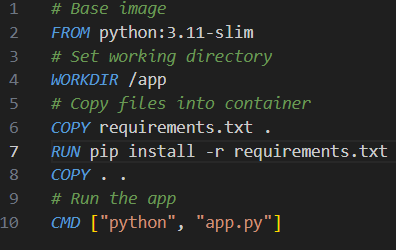
A Dockerfile is a set of instructions for building your image.
Example (Python App)
1
2
3
4
5
6
7
8
9
10
11
12
13
14
# Base image
FROM python:3.11-slim

# Set working directory
WORKDIR /app

# Copy files into container
COPY requirements.txt .
RUN pip install -r requirements.txt

COPY . .

# Run the app
CMD ["python", "app.py"]
How Docker Works (Simplified)
You write a Dockerfile
Build it into an image using:
1
docker build -t myapp .
Run the image in a container:
1
docker run -p 8080:5000 myapp
Note the cmd
docker run -p 8080:5000 myappruns the myapp image and-p 8080:5000maps the host port 8080 to container port 5000. means the app is accesble vialocalhost:8080
| Docker Command | Host Port | Container Port | Access via |
|---|---|---|---|
| docker run -p 5000:5000 | 5000 | 5000 | localhost:5000 |
| docker run -p 8080:5000 | 8080 | 5000 | localhost:8080 |
What actually happens behind
-p(NAT into the container, why the app inside must listen on0.0.0.0, and how to keep a published port from bypassing nginx) is covered in Networking Part 1.
Common questions on Dockerfile
What is a Dockerfile?
Yes — the Dockerfile is the main configuration file that tells Docker how to build an image for your application.
It’s like a recipe:
- Base OS – The minimal operating system layer your app runs on.
- Dependencies – All the libraries, packages, or runtimes your app needs.
- Code – Your actual application source files and logic.
- What to run – The startup command that launches your app inside the container.
Does the Dockerfile have to be named Dockerfile?
By default, yes.
When you run:
1
docker build .
Docker looks for a file named exactly Dockerfile in the current directory.
But you can name it anything if you specify it manually:
1
docker build -f MyDockerfile -t myimage .
Can a project have multiple Dockerfiles?
YES — it’s common!
Examples:
Dockerfile-> For productionDockerfile.dev-> For developmentDockerfile.test-> For running tests
Each one might use different base images or dependencies. You just build them separately:
1
docker build -f Dockerfile.dev -t myapp-dev .
Does the docker build name have to be special?
You can name a Docker image almost anything, but there are some rules and best practices:
** most used format:**
1
[registry/]repository[:tag]
Examples:
myapp— simple local imageusername/myapp— often used on Docker Hubmyregistry.com/myteam/myapp:1.0.2— custom registry with version tag
Naming Rules:
- Lowercase letters only (
myapp, notMyApp)- Digits and dashes (
-) are allowed- Avoid spaces
- Tags (like
:v1,:latest) are optional but useful- Invalid:
MyApp← uppercase not allowedmyapp@v1←@not allowed
Best Practices:
- Use tags for versions:
myapp:1.0,myapp:latest,myapp:dev
Why Docker Compose?
Docker Compose is essential when:
- You want to run multiple containers (e.g., web + database)
- You want to define services in a single YAML file
- You want to manage containers as a group (up, down, restart)
In a
docker-compose.ymlfile, you can define multiple services (containers) and can
- Directly build from a Dockerfile
- instruct Docker Compose to build an image from a
Dockerfileusing thebuild:directive.build: .tells Docker Compose to look for aDockerfilein the current directory- Use a Prebuilt Image
- You can also use an image that already exists on Docker Hub or another registry using the
image:directive.
Example docker-compose.yml
1
2
3
4
5
6
7
8
9
10
# example showing both the ways (Can Use Both in the Same Compose File)
services:
  web:
    build: .
    ports:
      - "5000:5000"
  db:
    image: postgres:15  # Could be local or from Docker Hub
    environment:
      POSTGRES_PASSWORD: mysecret
note the
build:directive supports custome path and names a well as mentioned below
Older compose files start with
version: '3.8'. Currentdocker composeignores that key (and warns that it’s obsolete), so you can leave it out.
Run it with:
1
2
3
4
5
6
docker-compose up    #  if not installed as plugin
docker-compose down
# or
docker compose up    #  if installed as plugin
docker compose down
- Use
docker composeif installed as a plugin (recomened and new way) else usedocker-compose
Key questions on docker compose
1. What is context: in Docker Compose?
context specifies the folder sent to the Docker engine during the build. It tells Docker where to find the Dockerfile and all source files used in the build process.
Example:
1
2
3
build:
  context: ./frontend
  dockerfile: Dockerfile.dev
- Docker uses the
./frontendfolder as context. - It looks for
Dockerfile.devinside this folder. - All files in
./frontendare available during the build (e.g., forCOPY . .).
Note: Paths in the Dockerfile are relative to the context, not the Dockerfile location.
2. Is postgres:15 local or remote? How does Docker know?
Docker first checks if the image postgres:15 exists locally. If not, it tries to pull it from a remote registry like Docker Hub.
- If you build locally with
docker build -t postgres:15 ., Docker Compose uses this local image. - If not found locally, Docker attempts to pull it; failure occurs if the image does not exist remotely.
3. How does Docker know to use Dockerfile.dev?
You explicitly specify the Dockerfile in Compose:
1
2
3
build:
  context: ./frontend
  dockerfile: Dockerfile.dev
Without dockerfile:, Docker defaults to Dockerfile. Custom filenames require explicit specification.
Full Flow: Compose Build and Run
Running:
1
docker-compose up --build
- Compose reads
docker-compose.yml. - For the
frontendservice:- Uses
./frontendas context, builds usingDockerfile.dev.
- Uses
- For the
backendservice:- Looks locally for
postgres:15. - If absent, pulls from Docker Hub or fails.
- Looks locally for
1
2
3
4
5
6
7
8
9
10
11
12
13
14
15
16
+--------------------+
| docker-compose.yml | (Defines multi-container applications)
+--------------------+
          |
          | docker-compose up
          v
+------------------------+
| Multiple Docker        | (Multiple containers running together)
| Containers             |
+------------------------+
          |
          | Managed by
          v
+------------------+
| Docker Engine    | (Core runtime that manages containers)
+------------------+
Multistage Dockerfiles
1. Normal Dockerfile behavior
Normally, a Dockerfile has one FROM at the top, which defines the base image. Every instruction after that builds layers on top of this base. Example:
1
2
FROM debian:bookworm
RUN apt-get update && apt-get install -y curl
→ That creates an image starting from Debian.
2. What happens with multiple FROM statements
When you add another FROM, Docker starts a brand-new build stage.
Each stage is like its own Dockerfile, but all inside one file. Example:
1
2
3
4
5
FROM debian:bookworm AS stage1
RUN echo "hello" > /hello.txt

FROM debian:bookworm
COPY --from=stage1 /hello.txt /root/
- Stage 1 (
AS stage1): builds something and stores/hello.txt. - Stage 2: starts fresh (a new Debian base), but we can pull artifacts from stage 1 using
COPY --from=stage1.
At the end of the build, the final image is always from the last FROM block (unless you explicitly tell Docker to stop earlier using --target).
How it applies to a Dockerfile with Example
AN EXAMPLE FILE [CLICK ME]
1
2
3
4
5
6
7
8
9
10
11
12
13
14
15
16
17
18
19
20
21
22
23
24
25
26
27
28
29
30
31
32
33
34
35
36
37
38
39
40
41
42
43
44
45
    FROM python:3.13.5-slim-bookworm AS build-stage

    # hadolint ignore=DL3008
    RUN apt-get update && apt-get install -y --no-install-recommends \
        build-essential \
        wget \
        && rm -rf /var/lib/apt/lists/*

    WORKDIR /root
    # The following lines compile a shim to bind a process to an IP address
    # using LD_PRELOAD. To run the shim use the following syntax:
    # BIND_ADDR="X.X.X.X" LD_PRELOAD=/usr/lib/bind.so [command to run]
    RUN wget -q http://daniel-lange.com/software/bind.c -O bind.c \
        && sed -i '/#include <errno.h>/a #include <arpa\/inet.h>' bind.c \
        && gcc -nostartfiles -fpic -shared bind.c -o bind.so -ldl -D_GNU_SOURCE \
        && strip bind.so


    # Debian SSH server start from here.
    FROM python:3.13.5-slim-bookworm

    LABEL maintainer="maintainer@example.com"
    LABEL version="1.9.2p1"

    SHELL ["/bin/bash", "-o", "pipefail", "-c"]
    RUN echo "root:changeme" | chpasswd   # example only, never bake real passwords into an image

    # hadolint ignore=DL3008
    RUN apt-get update && apt-get install -y --no-install-recommends \
        openssh-server \
        iproute2 \
        && rm -rf /var/lib/apt/lists/* \
        && mkdir /var/run/sshd \
        && sed -i 's/.*PermitRootLogin.*/PermitRootLogin yes/' /etc/ssh/sshd_config \
        && sed -i 's/.*GatewayPorts.*/GatewayPorts yes/' /etc/ssh/sshd_config \
        && sed -i 's/.*PermitTunnel.*/PermitTunnel yes/' /etc/ssh/sshd_config
    EXPOSE 22/tcp

    # Copy bind.so shared library from previous stage.
    COPY --from=build-stage /root/bind.so /usr/lib/
    COPY isolate_docker_iface /usr/bin/

    ENV TIMEOUT 60

    CMD ["/usr/sbin/sshd", "-D"]
Your Dockerfile has two stages:
Stage 1 (AS build-stage)
1
2
FROM python:3.13.5-slim-bookworm AS build-stage
# compiles bind.so
Used only to build the bind.so shared library.
This stage won’t be kept in the final image (so the extra compiler tools don’t bloat your SSH server image).
Stage 2 (final image)
1
2
3
FROM python:3.13.5-slim-bookworm
# installs openssh-server, configures root login
COPY --from=build-stage /root/bind.so /usr/lib/
This is the real final image you’ll run (python:3.13.5-slim-bookworm + SSH server).
It grabs only the bind.so file from stage 1, nothing else.
So the build goes:
- Docker builds stage 1 completely.
- Then builds stage 2 (the final image).
- Final result = stage 2 image.
Which FROM does the build “start” from?
- ✅ Always starts from the first
FROM(stage 1).- Then continues through all stages in order until the final one.
- 👉 Think of multi-stage builds as:
- Stage 1: scratch pad (compile, build tools, extra stuff).
- Stage 2: clean final image, only copy in what you really need.
Common Docker Commands
Images
1
2
3
docker build -t myimage .          # Build image from Dockerfile
docker images                      # List all images
docker rmi <image_id>              # Remove an image
Containers
1
2
3
4
5
docker run -d -p 80:80 myimage     # Run in detached mode
docker ps                          # List running containers
docker ps -a                       # List all containers (even stopped)
docker stop <container_id>         # Stop a container
docker rm <container_id>           # Remove a container
Volumes & Bind Mounts (Persisting Data)
A container’s own filesystem disappears when the container is removed. Anything that must survive (data, output, config you want to edit) is mounted from outside. There are two kinds:
1
2
3
docker volume create myvolume
docker run -v myvolume:/data myimage        # named volume: NAME:CONTAINER_PATH, managed by Docker
docker run -v ./data:/data myimage          # bind mount:   HOST_PATH:CONTAINER_PATH, a real folder on your machine
Bind mount (./data:/data) | Named volume (myvolume:/data) | |
|---|---|---|
| Where the files live | A folder you choose on the host | Docker’s storage (/var/lib/docker/volumes/...) |
| See/edit files directly | ✅ | ❌ (docker cp or exec in) |
| File ownership issues | Possible (UID mismatch) | Handled by Docker |
| Best for | configs, dev, inspecting output | opaque persistent state (databases) |
Why bind-mounted files can end up owned by the “wrong” user, and what really belongs inside the image vs. in a mount, is covered in Deployment in Practice.